IPTV (Internet Protocol Television) has changed how we watch TV — streaming live channels, movies and sports directly over the internet. This guide walks you through using IPTV on Windows and macOS: which players work best, how to install them, what subscription options look like, and how to fix common problems. Many people get stuck choosing the right player or configuring their subscription; with clear steps and the right checklist, you’ll be watching without the stress. We cover top Windows players, setup for both operating systems, UK subscription plans, and troubleshooting tips so you can stream smoothly.
Key Takeaways
IPTV streams live TV, movies and sports over the internet on Windows and macOS devices.
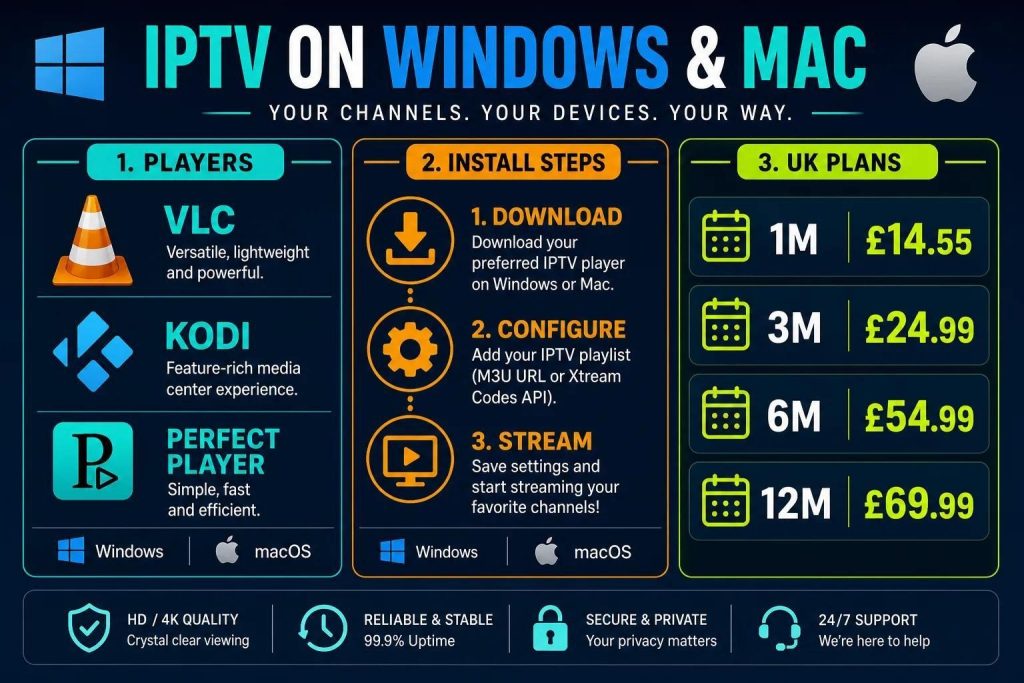
Popular Windows IPTV players include VLC Media Player, Kodi and Perfect Player for flexible playback and formats.
Look for easy menus, HD/4K support and multi-device compatibility when picking a player.
Installation typically means downloading the app, entering your subscription details and loading channel lists or playlists.
UK IPTV plans commonly run from one to twelve months and can include thousands of live channels plus large VOD libraries.
Pick a subscription based on device support, streaming quality and how much you’re willing to spend.
Buffering and playback errors are often fixed by checking your connection, updating software and restarting the player.
For reliable 4K streaming, aim for a stable internet connection of around 25 Mbps and optimise your device.
Use reputable providers that offer licensed content to stay on the right side of copyright rules.
Which IPTV Players Are Best for Windows PCs?
Several IPTV players stand out on Windows because they balance ease of use with strong playback features. A good player should be simple to navigate, support high-resolution streams and work across devices. Top choices include:
VLC Media Player: Extremely versatile and reliable, VLC plays a wide range of formats and handles network streams well.
Kodi: An open-source media centre with deep customisation and add-on support for IPTV playlists and guides.
Perfect Player: Loved for its clean interface and strong EPG (Electronic Program Guide) support for scheduling and channel navigation.
What Features Should You Look for in Windows IPTV Apps?
When choosing an IPTV app for Windows, prioritise these core features:
User-Friendly Interface: Easy navigation and clear menus reduce setup friction and make browsing channels quicker.
Support for HD and 4K Streaming: Ensure the player can handle the resolution you plan to watch for crisp video quality.
Compatibility with Various Devices: Choose a player that works across PCs, smart TVs and mobile devices if you want flexibility.
How to Choose the Best IPTV Player for PC UK Users?
UK users should weigh these factors when picking a player:
Features to Look For: Support for HD/4K, an intuitive interface and extras like EPG, catch-up and multi-screen support will improve your viewing.
User Reviews: Read recent reviews to check stability, updates and real-world performance before committing.
Pricing Options: Compare subscription models and look for free trials or short plans so you can test services without a long commitment.
How to Install IPTV on Windows and macOS Computers?
Installing IPTV on Windows and macOS is usually straightforward. The exact steps depend on the player you choose, but the process is similar across most apps.
Step-by-Step IPTV Setup Guide for Windows
Download and Install the IPTV Player: Grab the player from the official site or a trusted store to avoid modified builds.
Configure Settings: Open the player and enter your IPTV subscription details or load the provided playlist/URL.
Start Streaming: After configuration, select a channel or VOD item and begin watching.
Mac IPTV Setup Guide: Installation and Configuration
Download the IPTV Player: Choose a macOS-compatible player and download it from the developer or the Mac App Store where available.
Install the Application: Run the installer or move the app into Applications and follow on-screen prompts.
Configure Your IPTV Settings: Input your subscription credentials and load any playlist URLs or EPG files supplied by your provider.
Begin Streaming: Once set up, open channels or on-demand content and enjoy your stream.
What IPTV Subscription Plans Are Available in the UK?
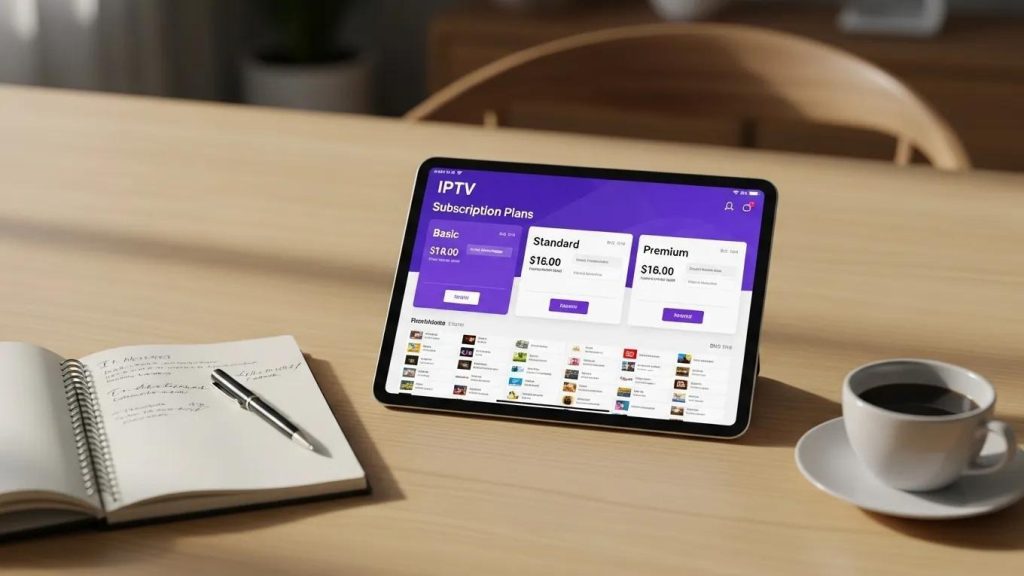
UK IPTV providers typically offer a range of plans to suit different viewing habits and budgets. Below are common options and their typical features.
Plan Duration
Price
Features
1 Month Plan
£14.55
High-end servers, 4K UHD and HD streams, ~30,000 live channels, ~100,000 VOD titles, 24/7 support, adult channels, catch-up and weekly content updates.
3 Month Plan
£24.99
Same core features as the 1 Month Plan with a reduced monthly cost for longer commitment.
6 Month Plan
£54.99
Same core features as the 1 Month Plan, ideal for users who want stability over several months.
12 Month Plan
£69.99
Same core features as the 1 Month Plan and best value for long-term users.
BEST IPTV SHOP LTD offers these subscription packages designed for UK viewers and international customers who want reliable streaming at competitive prices.
How to Select the Right IPTV Subscription for Your Device?
Picking the right subscription comes down to device compatibility, desired quality and how you watch.
Compatibility with Devices: Make sure the service supports your hardware. BEST IPTV SHOP LTD works with Windows and Mac PCs, Android TVs, Amazon Firestick and most smartphones.
Features to Consider: Choose providers that offer Full HD or 4K if your device and internet support it — 25 Mbps is a good target for 4K streams.
Examples of Popular Subscription Options: Monthly: £14.55 for access to ~30,000 live channels and ~100,000 VOD titles. 3-Month: £24.99 for a short-term saving. 6-Month: £54.99 for medium-term users. 12-Month: £69.99 for the best annual value.
What Are the Pricing Options and Channel Packages?
Understanding plan tiers and channel line-ups helps you choose the best option for your needs.
Overview of Pricing Options: Plans differ by length and price so you can pick monthly flexibility or longer-term savings.
Channel Packages Included: Packages commonly include sports, movies, international channels and themed bundles depending on the plan.
Comparison of Plans: Compare feature sets — number of channels, VOD library size, catch-up and support levels — to find the right fit.
How to Troubleshoot Common IPTV Issues on PC and Mac?
Most streaming problems are solvable with a few quick checks. The tips below cover the usual fixes.
What Are Frequent IPTV Playback Problems and Solutions?
Typical playback issues and what to try:
Buffering Issues: Check your internet speed and switch to a wired connection if possible; reduce stream quality if bandwidth is limited.
Playback Errors: Restart the IPTV player, clear cache or reinstall the app, and check for updates to the player and your operating system.
Connection Problems: Confirm network settings, ensure your subscription is active and test other online services to rule out wider outages.
How to Optimize IPTV Streaming Performance on Windows and macOS?
Try these optimisations for smoother playback:
Internet Speed Requirements: Match your plan to your streaming goals — around 25 Mbps for reliable 4K, 10–15 Mbps for HD.
Device Settings: Close background apps, free up RAM and ensure your device firmware and drivers are current.
Recommended Configurations: Use Ethernet where possible, connect to less-congested Wi‑Fi bands (5 GHz) and avoid simultaneous heavy downloads while streaming.
Frequently Asked Questions
What is IPTV and how does it work?
IPTV delivers TV and video over the internet instead of via satellite or cable. Providers stream live channels and on-demand libraries through internet protocols to compatible players and devices. Subscribing to an IPTV service gives you a channel list or playlist you load into a supported player to watch live TV, movies and more.
Can I use IPTV on multiple devices?
Yes — most IPTV services let you install the app or use the service on multiple devices, such as Windows and Mac computers, smart TVs, Android devices and Amazon Firestick. The number of simultaneous streams depends on the plan, so check your provider’s limits if you need multiple users at once.
Are there any legal concerns with using IPTV services?
IPTV is a legitimate technology, but not all services operate legally. Some providers distribute copyrighted content without proper licensing. To avoid legal issues, choose reputable providers that clearly state they offer licensed content and comply with copyright rules. Read reviews and verify the provider’s credentials where possible.
What internet speed is recommended for optimal IPTV streaming?
For consistent IPTV playback, aim for at least 25 Mbps for 4K streaming. HD streams will usually be fine at 10–15 Mbps. Remember that multiple devices on the same network will increase total bandwidth needs, so choose an internet plan that covers all active users in your household.
How can I improve my IPTV streaming quality?
Improve quality by ensuring a stable internet connection, closing unneeded apps, using a wired Ethernet connection when possible, and keeping your IPTV player and device firmware up to date. Also check your player’s buffer settings and try switching to a lower resolution if your connection fluctuates.
What should I do if my IPTV service is not working?
If IPTV stops working, first confirm your internet connection and restart the player. Check for app or OS updates and verify your subscription status. If issues persist, consult your provider’s troubleshooting guides or contact their support for account-specific help.
Conclusion
Choosing the right IPTV player and subscription makes a big difference to your viewing experience. With the right app, a reliable plan and a few optimisation steps, you’ll enjoy thousands of channels and extensive VOD libraries on Windows and macOS. Explore our recommended players and plans to find the setup that fits your devices and budget — then sit back and stream with confidence.




 Written by Anir k